Transferring files to/from your Workspace
There are several ways to upload and download files to a Coder Workspace. Coder’s built-in File Browser is the most straightforward. Magic Wormhole is well suited for moving files between Workspaces. Rclone is a more sophisticated option that supports advanced features like connecting to Google Drive.
Coder File Browser
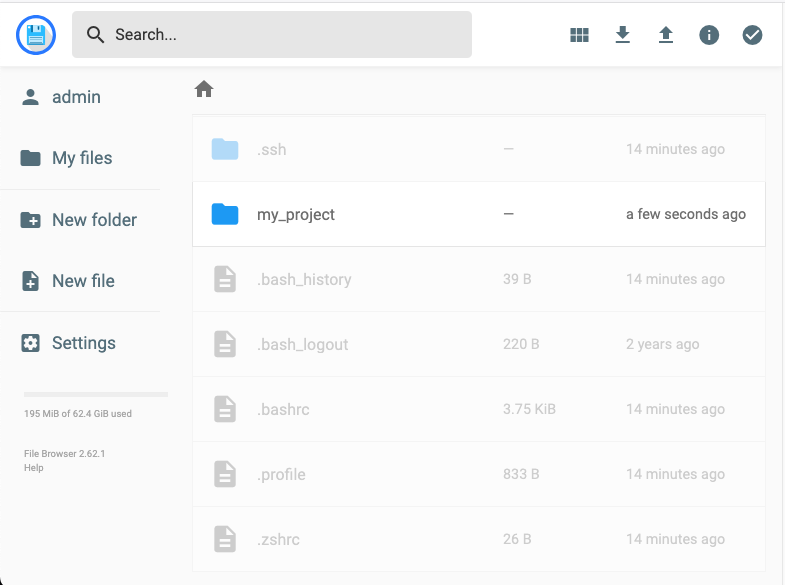
The most convenient way to transfer files to/from a Coder Workspace is to use the built-in File Browser, which you can access from Workspace’s dashboard.
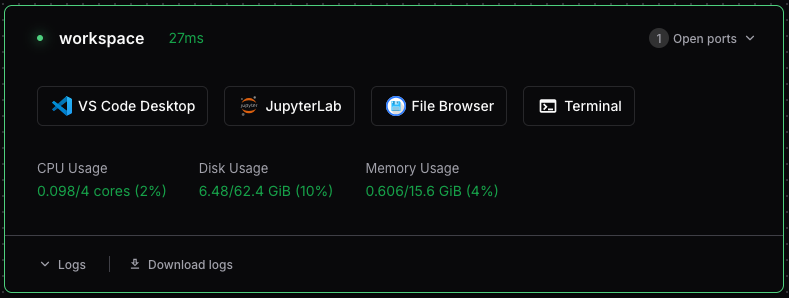
Clicking the File Browser button from Workspace dashboard opens the File Browser in a new browser window. (You may need to enable popups in your browser settings).
Magic Wormhole
Magic Wormhole is a command line utility that makes it easy to send files and directories directly between two machines using a short, one-time code. No accounts, servers, or SSH configuration required — just run a command on each side and the transfer happens over an end-to-end encrypted channel.
You can use Magic Wormhole without installing it by running it with uvx, which executes Python tools in temporary environments. uvx is part of uv and is installed on all Coder Workspaces by default
Sending a file or directory:
uvx magic-wormhole send ./myfile.txt
# or for a directory
uvx magic-wormhole send ./my-project
Magic Wormhole will print a short code like 7-guitarist-revenge. Use the code to download the files on the destination:
Receiving a file or directory:
uvx magic-wormhole receive 7-guitarist-revengeThe code is single-use and expires once the transfer completes or is cancelled.
This is a great way to migrate files and entire project directories between Coder workspaces!
Rclone: Connecting to Google Drive
Rclone is a powerful file transfer tool that is installed on all Coder Workspaces by default. You can use it to connect to your Google Drive.
These instructions require connecting to your Workspace using the VS Code Desktop application. This is required only for giving Rclone permissions to access Google Drive. Once you’ve completed that step, you don’t need to use VS Code.
Rclone can map a folder in your Workspace (e.g., ~/gdrive) to your Google Drive. To avoid deleting anything in your Drive, use read-only permissions (as shown).
Connect to your Workspace using VS Code. Click the VS Code Desktop icon from the Workspace dashboard.
In VS Code, open a Terminal window: View → Terminal (or Ctrl + `). The rest of these instructions are shell commands you’ll enter in the Terminal.
Install Rclone (if necessary)
Rclone should be installed on your workspace by default. If it isn’t, you can use this command to instal it”
sudo apt update && sudo apt install rcloneGive Rclone read-only access to your Google Drive. (For full read and write permissions, remove
scopes drive.readonly. See Rclone’s complete documentation for Google Drive scopes).rclone config create gdrive drive scopes drive.readonlyA web browser should open. In the browser, grant Rclone permission to access your Google Drive. (This access is limited to the Workspace itself). Once completed, you should see a message: “Success! All done. Please go back to rclone.” Close the browser window and go back to the VS Code Terminal window.
Create a folder to map to your Google Drive
mkdir ~/gdrive“mount” your Google Drive to the folder
rclone mount gdrive: ~/gdrive --daemonConfirm that you can list files in your Drive using the folder.
ls ~/gdrive
You can now access files in your Google Drive using the ~/gdrive folder. To disconnect the folder from your Drive, use the command: umount ~/gdrive
If umount doesn’t work, it’s often because you have a file open or your terminal is running in a subdirectory of ~/gdrive.